Click on a photo in the Photo Editor and the annotation drawing tools will appear at the bottom. Click a tool and then click on the photo and drag with the mouse down to draw the annotation. Annotations can be resized after drawn by clicking and dragging the corners.
Click on any drawn annotation and the Drawing settings tab will display above. The annotation color, thickness and fill color can all be set using the tool buttons. You can also right mouse click on an annotation to display a context menu with additional advanced options.
To change any annotation color click the annotation to select it, then click the color picker icon . Click on the new desired color. You can set additional color options by right mouse clicking on an annotation and


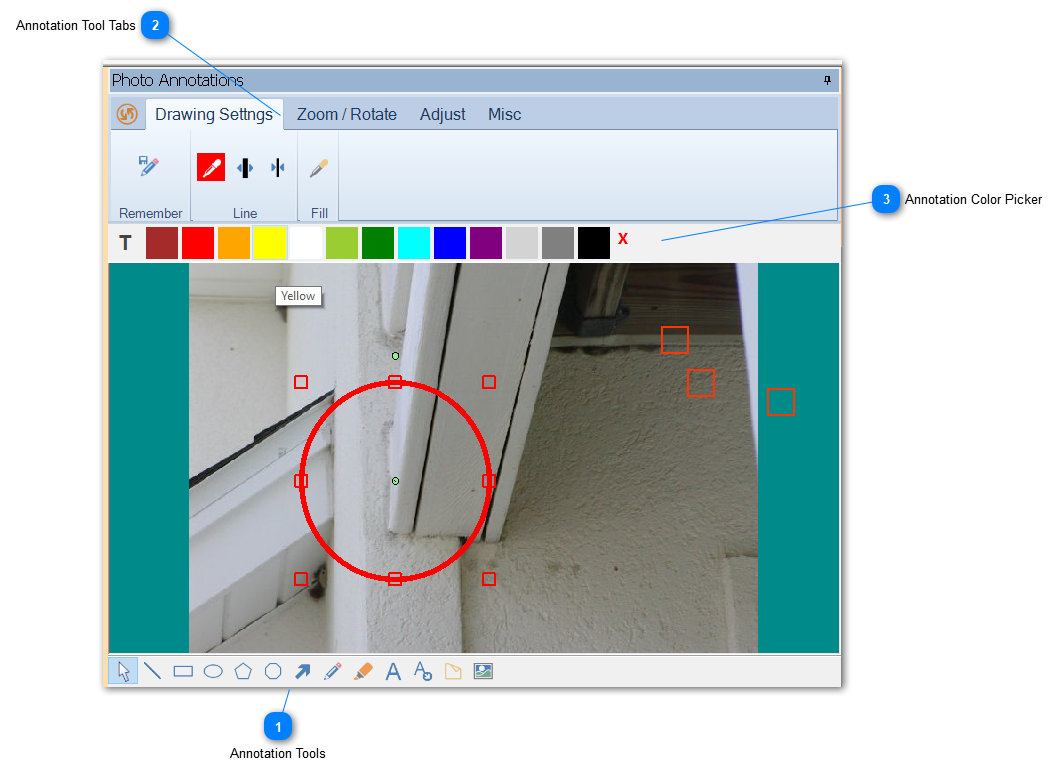


 . Click on the new desired color. You can set additional color options by right mouse clicking on an annotation and