Click the plus or minus buttons to zoom in or out on the photo. This can be helpful to zoom in to draw annotations that are close to one another. You can click the to return to normal view. This affects the viewer perspective only.
To crop an image click the Crop button and then click the top left of the desired area and drag down and to the right to select the crop region. You can click the undo button to return to original image size. Cropping should be done before adding annotations.
Click the center two buttons on the Rotate section of the tool bar to rotate the image 90 degrees right or 90 degrees left. The outer two buttons will rotate a degree at a time.


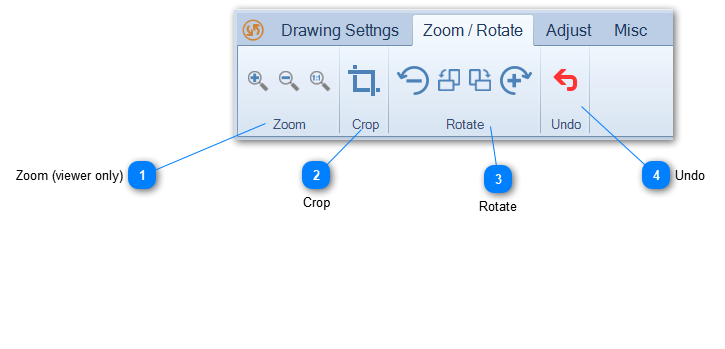


 to return to normal view. This affects the viewer perspective only.


 button to undo rotate or crop actions. Once you select another photo to display in the editor the changes become permanent.