Even though photo sizes by default are determined automatically by the chosen subsection layout, the sizes of the photos can be manually set or even individually set.
To set the size of all photos in a subsection set the desired height manually as described in the Subsection Options Tab section
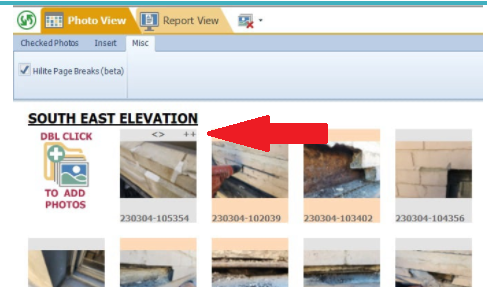
You can increase the size of an individual photo on the Photo View tab (previously only available on the Report View tab). Press Cntrl + to increase photo one size and Cntrl - to decrease photo one size. You can also use Cntrl > and Cntrl < to span an image across columns. The thumbnail will show + and - symbols to indicate size changes and <> to indicate the image has been spanned across columns (see 1st image below).
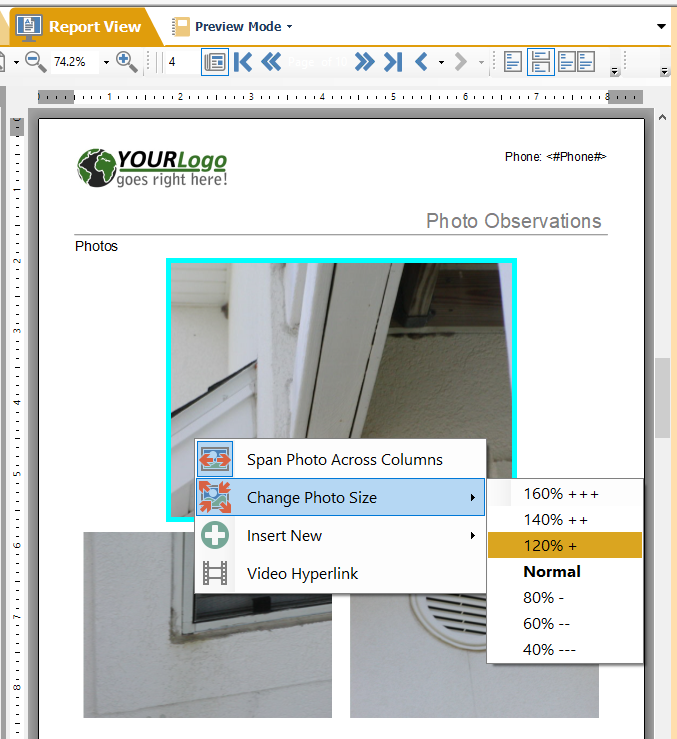
The photos can also be individually resized on the Report View tab by right mouse clicking on an image and selecting the desired new size (percentages). Photos will be shifted accordingly.