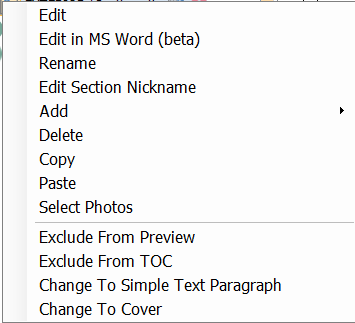
There are several right mouse features available on the Report Outline Panel. Below are a brief description of each:
Edit Click to launch the appropriate editor for the section type (photo or text editors)
Edit In MS Word (beta) For Advanced text pages this menu option will attempt to open up the section in Microsoft Word for editing. This new feature will allow MS Word editing features to be utilized as desired (such as Gramerly). Not currently compatible for sections that include special report data fields. When finished editing close MS Word and save changes. Click the Refresh button to see the updated text.
Rename Click to display prompt to rename a section or subsection
Edit Section Nickname You can use optional 'Nicknames' for subsections to help identify them when you have multiple subsections with the same titles. The nickname will be displayed in the Photo View along with the subsection title to uniquely identify the subsection.
Add Click to show dialogs to add new sections / subsections
Delete Click to delete currently selected sections or subsections
Copy / Paste Use to copy / paste sections or subsections from one report to another. Copied sections will include all subsections.
Select Photos Click to select all photos in the selected subsection or section. If the section is selected then ALL photos in all of the sections subsections are selected. This feature is useful to quickly select large numbers of photos to delete or to move (drag).
Exclude From Preview Click to toggle between including the section in the Report View. This feature is useful to include sections in a report or template that may or may not be needed. The sections remain in the outline and can be included / excluded anytime by checking / unchecking the option.
Exclude From TOC Click to toggle between including the section in the Table of Contents or not. This allows the user to customize which items are seen in the Table of Contents. By default all sections and subsections are shown in the Table of Contents.
Change To Simple Text Paragraph / Change To Advance Text Page Click to convert a text section from simple to advanced or from advanced to simple. Use with care as changing from advanced text to simple text may loose the advance text layouts and content.