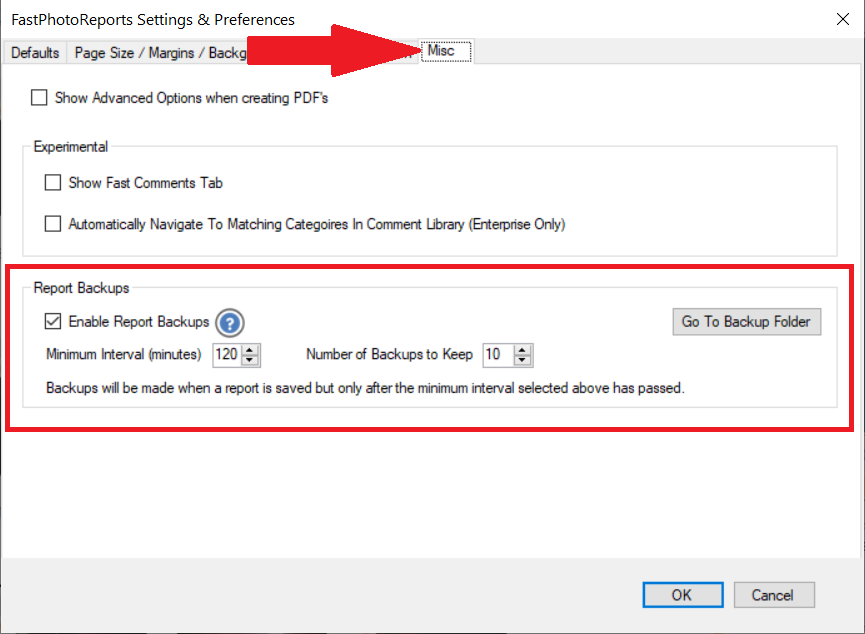
Click the gear at the top left of the main FastPhotoReports screen to get into Settings & Preferences. Then click on the Misc tab to see the Report Backup section as shown below:
Report Backups
When report backups are enabled FastPhotoReports will create periodic backup copies of the currently opened report and place it in the 'report backups' folder. The report backups will have the same name as the original report with a 'BU' suffix and a date and time added to the report name.
For example: MyReportName-BU-22Jan-320PM.fpr
The backups are ONLY created when you SAVE a report with the following options:
Backup Interval
You can select how many minutes to wait between backups regardless of how many times you Save the report. This will keep down the number of backups. Options are 30 minutes to 240 minutes (4hrs) intervals. The default setting is every 120 minutes. Remember, the back up feature is not an automatic back up. You must Save the report to trigger a backup.
Number of Backups to Keep
You can set the number of backups to keep of a report with a minimum of 5 to a maximum of 25. After the maximum number of backups is reached the oldest backup will be removed with each new backup created.
Backup Folder Location
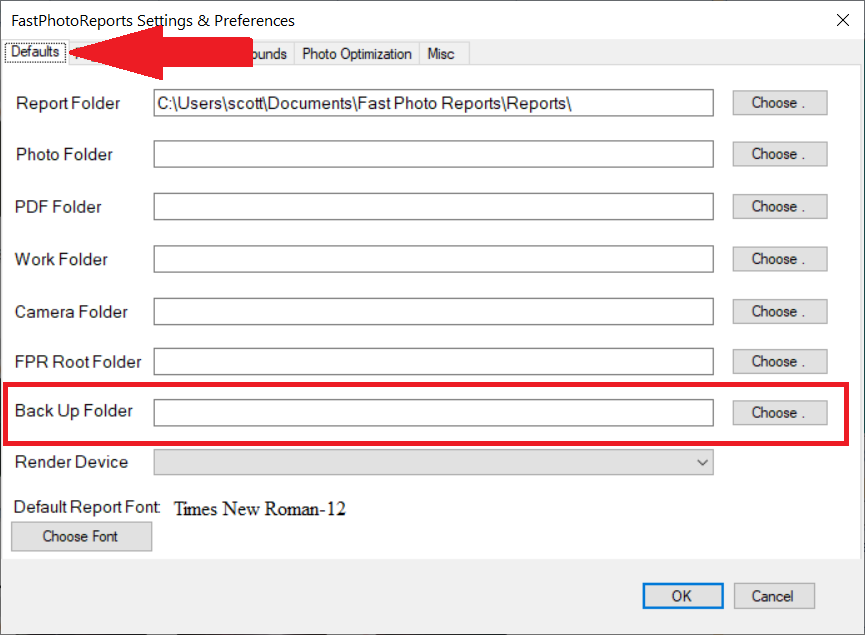
By default the Report Backup folder will be located in MyDocuments>FastPhotoReports>Reports Backup folder.
You can change the report backup folder by choosing the desired folder on the 'Defaults' tab of the Settings & Preferences screen:
Clearing Out Backups
Keeping a lot of backups can use up a lot of disc space. You can delete backup files at any time by simply going the backup folder and deleting any files as desired. You can quickly go to the back up folder using the button in the backup options section:
You can also simply use Windows File Explorer to navigate the to backup folder.
Recovering A Report From A Backup
To recover a backup simply click the 'Open Report or Template' button on the FastPhotoReport start up screen and open a desired backup report from the backup folder. Once opened you can perform a 'Save As' to rename the report as desired. We recommend that you use a different name than the original report.


 at the top left of the main FastPhotoReports screen to get into Settings & Preferences. Then click on the Misc tab to see the Report Backup section as shown below: